


In this article, we will walk you through the process of setting up a sample Java application with Elastic APM (Application Performance Monitoring) for Real User Monitoring (RUM). We will be using Nginx as the web server and orchestrating the setup with Docker. The guide will include detailed steps, code snippets, configurations, and a UI page to capture Real User Monitoring data.
The whole project code is available in this GitHub Repository.
1. Overview
The goal was to create a comprehensive setup which includes:
- A Java application instrumented with Elastic APM to monitor performance and user interactions(RUM).
- A user-friendly sample HTML interface to simulate API calls and capture RUM information.
- Docker to containerize the application and streamline deployment.
- Nginx as a web server to serve the HTML page and reverse proxy API requests.
2. Setting Up the sample Java Application
Download the working sample Java application Instrumented(TestHttpServer.java) with Elastic APM Java Agent along with log4j2.xml, pom.xml.
3. Dockerization
- Download the Dockefile.app and make sure to update the parameters Delastic.apm.server_urls and Delastic.apm.secret_token of your Elastic deployment. You can refer to this previous article to find their value from your Elastic Deployment from Java section.
- Download the Dockerfile.nginx along with nginx.conf, and ssl certs (nginx.crt and nginx.key)
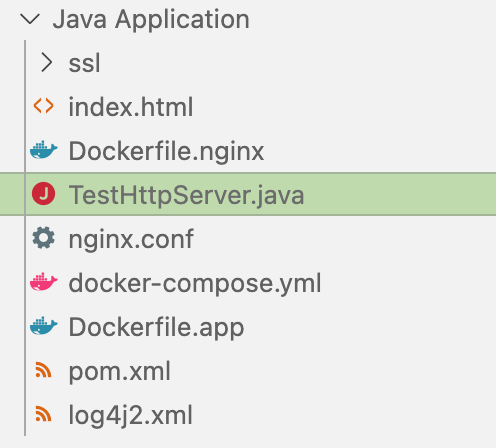
- Set up the project by keeping up all the files in the same folder and .crt and .key under a subfolder named SSL. This should look something like below:
4. RUM(Real User Monitoring) configuration using index.html
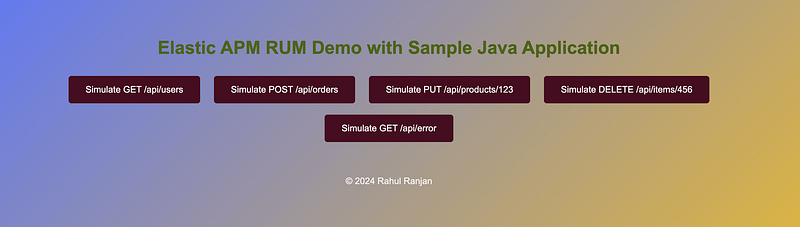
- Download the sample index.html and copy it to the same project directory and make sure to update serverUrl and secretToken as explained in the article Elastic RUM (Real User Monitoring) with Open Telemetry (OTel).
- The sample HTML page is designed to simulate various API calls including custom errors and capture RUM data along with.
5. Deploy the Project.
- Download the docker-compose.yml for deploying the entire project and make sure to update ELASTIC_APM_SERVER_URL and ELASTIC_APM_SECRET_TOKEN parameters as per your deployment’s configuration.
- Execute the below docker build command to deploy the project from the project directory.
- This Docker Compose file sets up two services: a Java application and an Nginx server, both connected through a custom network.
docker-compose up --build -d
- Validate that both the Java application and Nginx containers are running without any issues. For any issues, review the container log files.
- Navigate to http://localhost:8080/ fire the index.html and simulate various API calls and also generate RUM data. For any issues in html page or RUM data.
6. Visualize the Data on the Elastic Observability Page.
- View your APM data in Kibana by navigating to APM in Elastic Observability UI. The java application(rranjan-java-app) should be listed under available service along with all the metrics.
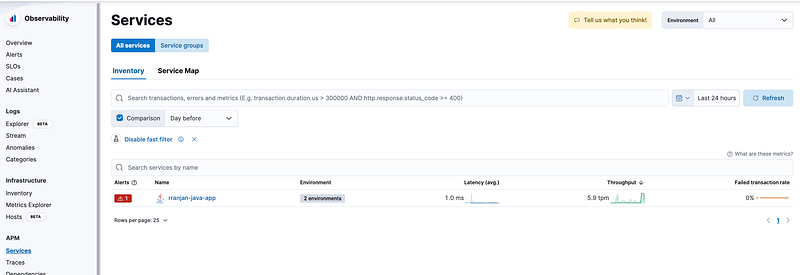
Application listed under Services.
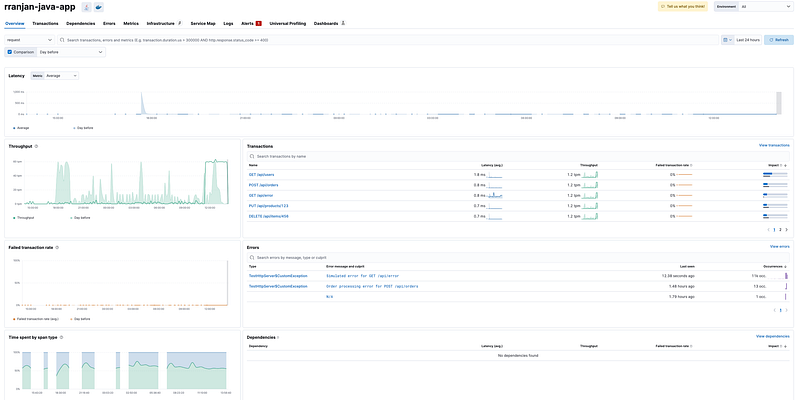
Application details
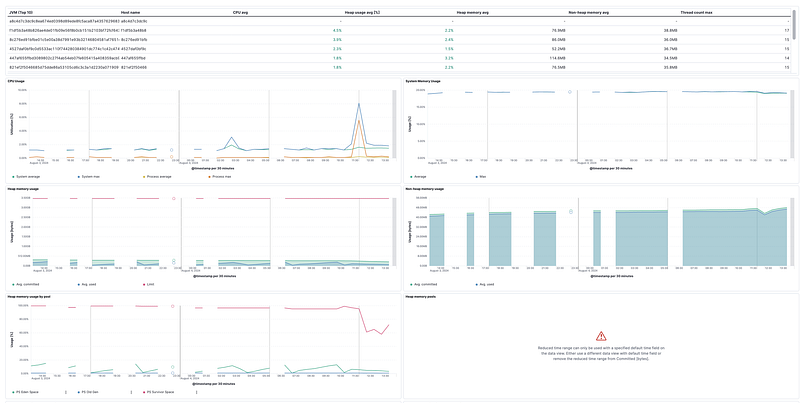
Metrics Information of the Java application
- Monitor Real User Monitoring (RUM) data in Kibana. Log in to Kibana, navigate to the User Experience section of Observability, and analyze the RUM data by exploring the available metrics.
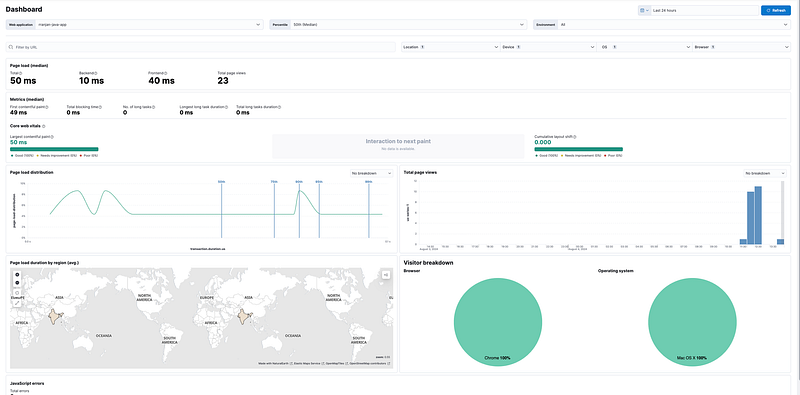
RUM dashboard in Kibana
In this project, we have successfully established monitoring of sample Java applications(APM) and various API simulation scenarios using Java, Elastic APM, Nginx, and Docker.




 Tech Insights & Blogs by Rahul Ranjan
Leave a comment